Optimize SQL Server Deployment with PowerShell and DBA Checks

In my current role I inherited a very long and complex PowerShell script that actually installed SQL Server. This script was almost 1500 lines of code and it scared me. But to my surprise there was a way to install SQL without clicking check boxes! You would set a few parameters in a config script like name of server, service accounts and volume information to name a few. Then of course execute the 1500 hundred lines of code, one script block at a time. Nice thing about this script is you could setup multiple block sets of parameters and actually perform multiple installations at the same time. I could actually build a 3 node cluster in time it took to do just one server! Believe it or not, in my 20 years of managing SQL Server I have only used the instalation wizard to install SQL Server. So, unlike most of my readers this was brand new to me.

In trying to learn more about this “wizardary” known as Desired State Configuration, I like many before me decided to read. And I read to only get more confused. DSC is a very complicated and SQL DSC is even more complicated at least to me. The more I read about DSC and the more I used the script the more I realized there has to be a better way. As time passed, requirements changed, specs of servers changed, the DSC script had to be changed. It got to the point that it would fail move often than succeeding. I understood the concept; but apparently I was not a DSC PowerShell developer.

So I took it upon myself to develop a new method of remotely installing SQL Server using PowerShell, DBA Tools, DBA Checks and a few little home grown functions.

First I laid out the steps that would need to be done in any SQL Installation. These really are straight forward.

  1. Pre-Check — way to verify server OS, volumes, and patching
  2. Install SQL SQL Server — perform this task per our companies policy
  3. Post-Check — configuration, installation of tools needed by DBA Team and adding monitoring
  4. Validation — determine a method to validate SQL is running per CIS standards.

Each Step will be elaborated on in future blog posts with.
Expanding a DBA’s Role

I have never really considered my self a System Administrator, but I am familiar enough with the Windows Operating System to consider myself a little dangerous. However, with more and more of our clients utilizing the power of Microsoft Azure VMs I see my role as a SQL Consultant starting in encompass System Administrator duties.

Recently a client found this article on “Best Practices for SQL Server in Azure Virtual Machines” and wanted to re-provision his volumes to adhere to them.

No my first thoughts was wait, I’m a DBA, not a System Admin that’s not my role! But thinking more about it I realized the client views this as a SQL Server issue and I am the SQL Server Consultant and that it is my job to remedy this problem.

Not being 100% confident in Azure, I spun up a VM SQL Server and attempted to add some volumes.  To my surprise, this was way too easy.

After selecting the server I wanted to manage….

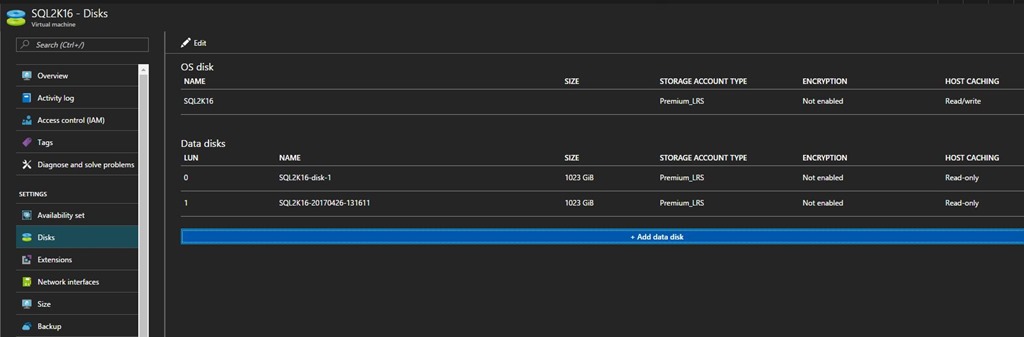
Step 1:    Select Disk on the left menu and then click “+ Add Data Disk”AddingDisks1 

Step 2: Configure Disk

  • You will need to provide a name or you can use the pre-populated name
  • Select Source Type, in this case I left it at the default “New (empty disk)”
  • Select Account Type, again, left it at the default of “Premium (SSD)”
  • Choose the Size.  From 0 t0 1023 which is a Terabyte of space.
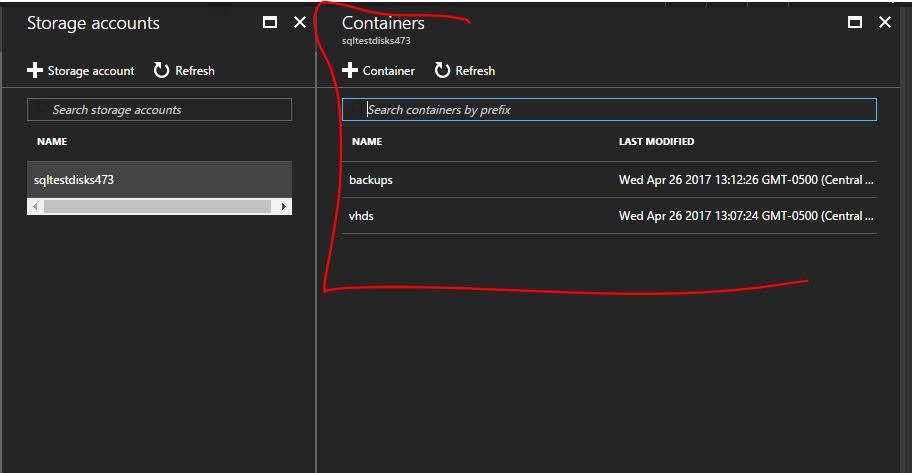
  • Select Storage Container.  This will open another tab and just pick the one you want or create a new one
  • Storage Blob name – once again you can use the pre-populated name

AddingDisks2

Step 3: Select a Container

This is where the actual VHD file will reside, you can use an existing container or create a new one for these files

AddingDisks3


That’s it!  That is all that is need to mount a new volume to an existing VM SQL Server. It automatically populates in the OS Disk Management where you will need to create a “Simple Volume” (or however you would like to do it) and format the drive (remember MSFT recommends 64K for data and log drives)

You are now ready to do. 

And removing an existing drive is even easer.  At the top of the Disk Panel is the work “Edit” click there and you are given the option to delete. It will automatically remove it from your server, no reboot no warning!  So be careful.

Heck, maybe being a System Administrator in Azure isn’t so tough after all!