Newer is not always better!

The other day working with a client, I was attempting to move the TEMPDB data files to a new Solid State Drive (SSD) drive!  I was stoked to see the performance gain with this because I have yet to work with SSD in a SQL Environment.

Of course I hit a problem or I wouldn’t be writing a blog post about it!

it is on a volume with sector size 8192. SQL Server supports a maximum sector size of 4096 bytes

Excuse me?  SQL Server can’t support a drive? Well needless to say this was problematic.  After extensive research, the client purchased the latest and greatest SSD.  But unfortunately neither of us paid attention to the details.  As always, the Devil is in the Details.

https://support.microsoft.com/en-us/kb/926930 

Apparently MS SQL Server cannot use a physical sector size larger than 4096.  It can use smaller, but not larger!  OK, next step what exactly are we working with.

Using FSUTIL command (fsutil fsinfo sectorinfo) I did confirm the physical sector size for the SSD was 8192.  Repeated attempts to re-partition and/or re-format was not successful and it should not have been because the “physical” sectors are 8192, not the logical sectors.

Physical sector size is determined upon manufacturing and firmware. My client had to go back to the vendor to see if firmware was available to change the physical sector to 4096! 

Once again, lesson learned!  Be specific and diligent in your hardware details when purchasing SQL Server hardware.

Preventing a Disaster: My Methodology Part 4

This is my last post in a series called Preventing a Disaster: My Methodology. In Part 1 I discussed the importance of running DBCC CHECKDB on your databases and provided tips on how to do this in VLDB and very busy systems.  In Part 2: Backups, I discussed the importance of a DBA knowing the RPO/RTO (Recovery Point Objective/Recovery Time Objective) of the business.  It is the RPO/RTO of a company that should determine your backup policies and procedures.  The 3rd installments discussed Off-site Locations and the fact that your backup strategy is not complete until you have a copy of your backups off the physical site.

In this installment I would like to discuss my last point in Preventing a Disaster and that is to ask yourself, “are my backups valid?”  Earlier, in post 2, the concept of “verifying” your databases was introduced and it should be a part of your backup process.  This basically verifies that what was written to the disk is equal to what is in the database.

To properly validate your backups, a DBA must perform a RESTORE of that backup to ensure that 1) it can be done, 2) that the RESTORE process works and 3) to validate the backup process.

This can be done to a development box, your desktop, a VM server that you can blow away later, it really doesn’t matter.  The point is to restore the database to a SQL Server. Typically, after a restore is complete you should run DBCC CHECKDB on the database to validate the integrity of the database.

To properly test your entire backup procedures, a DBA should get a backup file or files from archive, tape or off-site: i.e from the final resting place and restore that backup.  Restoring last nights backups is only half the process.

I once worked in a shop where a SQL server backed up to a network share where the 3rd party file backup solution then archived it tape.  Their policy was to keep 1 month’s worth of tape.  So just for kicks, I asked to get access to a 29 day old backup file to test restores.  Unfortunately, the Backup Administrator did not know how to retrieve a file from tape and place it on a network share. He was competent in getting all the necessary files to write to tape; but was unsure how to retrieve data (in his defense, he was new and was never asked to do a restore from tape).  The “backup procedures” as a whole was broken.

In Summary

In Preventing Disasters: My Methodology, I hope I explained what DBAs should do and why it is important to not skip a step. Be aware of who else is involved in the process and work closely with them to execute and test the process.

Preventing a Disaster: My Methodology–Part 3

Welcome back to part 3 of my 4 part series on Preventing a Disaster. In Part 1, I discussed the importance of Database Integrity checks and possibly ways to run them against VLDB (very large databases).  The second article was an explanation on Backups in general.

In this entry, I would like to discuss the concept of “Off-Site Locations”.

It is my belief that to truly say you have a effective disaster recovery plan, your plan needs to include how to get the SQL backups off-site.

There are a couple of options that I prefer and then there are less desirable options that are still technically effective.

Option 1 – The Cloudcloud

Several Cloud vendors proved storage containers, i.e. hard drive space.  Of course MS SQL works best with MS Azure.  SQL Server 2012 SP1-CU2 and SQL Server 2014 provided the ability to backup directly to an Azure storage container.  This pretty much combines steps 2 and 3 into one efficient step.  In April of 2014 Microsoft provided a secondary tool that allows previous versions of SQL to backup directly to Azure as well.

However, there are some downsides in my opinion.  Your server obviously needs an internet connection to the outside world and you have to have purchased an Azure account with the appropriate storage size. And as that storage blob grow, so does your monthly bill.

The benefits of using Azure storage include: compression, encryption and seamless integration into SQL Server.

Option 2 – SAN Replication

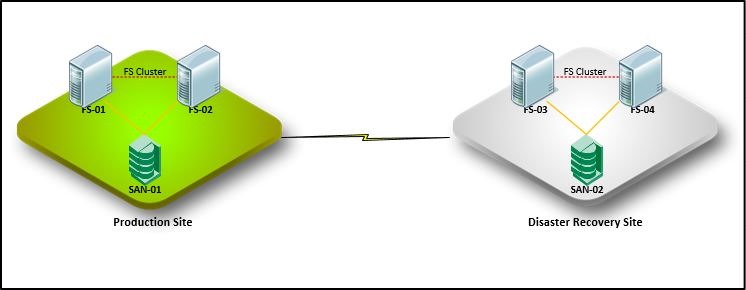
One option that I have seen to be successful is what I am calling SAN Replication. If your company has a backup datacenter in a different location, then chances are you have a SAN storage array their. 

In this configuration, you would use native SQL compressed backups to a local SAN, other than your data SAN of course!  Then that SAN is replicated to your secondary Data Center SAN, either using SAN snapshot or true block-by-block replication.

This method can be very effective in getting your data off-side.  This method may take a little longer however it usually is effective. The major downside to this is cost.  The cost of running a 2nd datacenter and a 2nd comparable SAN is enormous.  That is one of the reasons why cloud storage is becoming a more viable option as time goes by.filecluster

Option 3 – Personal Relocation

This is personally my favorite! (just kidding)  In this method you would use native SQL backup with compression targeted to an external drive.  And then at the end of the day personally take that external drive off-site.  External drive data recovery

Now, I am sure some of you are laughing at this method but with the cost of consumer hard drive rapidly decreasing this is a very viable option for some smaller companies.  I actually knew a company that did this every Friday and the IT manager relocated the USB external drive to a bank vault.  The company purchased 5 drives large enough to hold a weeks worth of backup files and rotated them out weekly.  This method allowed them to keep 30 days worth of backups at all times off-site.

This method is probably the cheapest; however not necessarily the safest. 

Wrap-up

I am sure there are many other scenarios that are effective to getting SQL backups off-site, these are the ones that I have seen work in the real world successfully.

The important thing to remember and what to take away from this post, is to get your backups off-site.  In the event of your primary datacenter crashing, you need to be able to get your data restored ASAP. And if your most recent backup is on a server/SAN in that datacenter, your recovery time has just been exponentially increased.

Your backup plan is not complete until your backups are off-site!

Indexes and Execution Plans (my presentation)

Last night I had the opportunity to once again speak at our local Baton Rouge SQL User Group meeting.  And as usual, it was a blast. 

The topic of choice was “Indexes and Execution Plans: Using them together for the better!” This was somewhat of a 101 class designed to show how you can read and use Execution Plans to build your indexing strategies.

An introduction into basic terms with minimal slides and then I was on to demos. My demos were all based on a Phone Book database that I created with a White Pages table and a Yellow Pages table.  I populated the data using this nifty website Mokcaroo.  One bit of new knowledge I learned during the process.  The tSQL phrase of INSERT INTO ….VALUES… has a 1000 row limit.  Who knew?

I believe meaningful discussion was had by all and without hesitation the “peanut gallery” were in top form!  Enjoyable to say the least!

My last point of the discussion was “how to determine if the indexes were useful”. I demonstrated the code I use to list all indexes and their usefulness.  My code to do this can be found in my previous blog post in the 8 Weeks of Indexes series: “Determining what you have now.”

During my presentation, I mentioned one of my favorite books on Execution Plans by Grant Fritchey (b|t) called SQL Server Execution Plans, Second Edition and ITS FREE so there is no excuse not to get it and read it!

Since my slide deck was very minimal because the focus was on the indexing demos, I really don’t see the point of posting it; but I will include the demo scripts just in case.